ᴥ Octopus Exporter

With this script, you can export InDesign documents to various formats—from PDF to IDML to image files. And all in a single step! This saves time and ensures a consistent export workflow.

So, who can help you if you need to create multiple PDFs from an InDesign file?

The “killer feature” is definitely that you can export up to three different PDF files at once!

Do you need a PDF/X and a low-resolution PDF without bleed? No problem—the “ᴥ Octopus Exporter” will take care of it!

In a nutshell:

Powerful Batch Export Tool

PDF, indd, idml, or Packaging

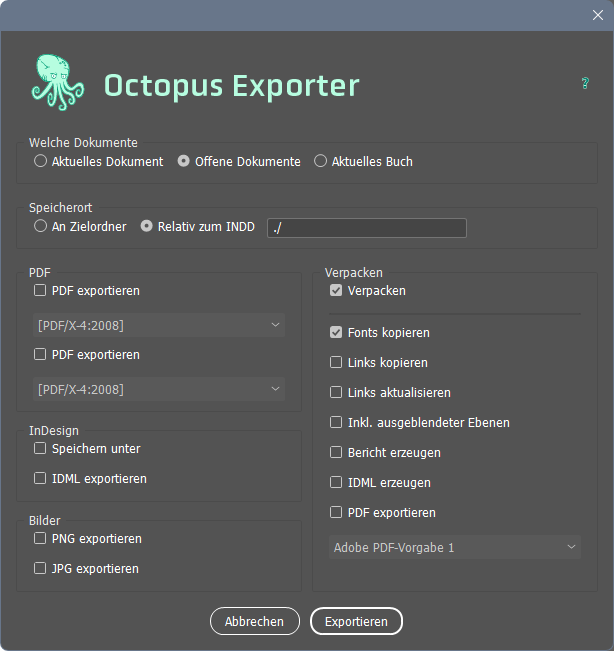
Which documents
Here you can specify which files you want to process:
— the current one, which is visible in the foreground;
— all open documents; or
— the "book"

Isn't that great? You can export a PDF from all open InDesign files with just one command. You can't do that with InDesign's built-in tools!

Note: The first PDF is given the same filename as the InDesign file. The second is given the extension *-2.pdf.

Save location
"To destination folder" means that the export will be saved in the same folder as the InDesign document.
"Relative to INDD" means that you can simply enter a folder name in the field. This folder will then be created next to the InDesign file, and the exports will be saved there.
PDF
: If you check both options, two different PDFs will be exported here upon request.
InDesign/Save As
... helps save disk space and make your InDesign run faster.
Export InDesign/IDML
... generates "InDesign Markup Language" files. See the box on the right.
Images
If you need to, you can use this method to export the pages of your InDesign files as PNG or JPG files.
Packaging
I'm sure I don't need to explain this feature to you. As you can see, there are various settings you can adjust.
If necessary, you can use this trick to create a third version of the PDF!

“Save as…”? Why is that?

Did you know that using the “Save As…” command often reduces the file size of InDesign files ? InDesign optimizes the file structure, which can result in significantly smaller file sizes in some cases.

You’ll notice this when you open the files. Your server will thank you, too—uploading to the FTP server or syncing to the cloud will be many times faster!

Give it a try! And with “Exporter” from Octopus you can do this for all files in your job with a single mouse click.

Why do I need the IDML export?

If you export an InDesign file as IDML, you have an image of the file in a pure XML form.

If you simply open it again in InDesign, you won’t notice any (or hardly any) difference to the original file.

This is sometimes necessary to “clean” a file that is causing problems and make it work again.

Download the Octopus installer here:

WordPress Cookie Plugin by Real Cookie Banner