Use AI to add placeholder text that matches your project in terms of content and design.
Adobe won't offer this feature until InDesign 2026 and later. Octopus can do it even in older versions of InDesign.
If you ‘re sick and tired of the old placeholder text in InDesign, try using AI-generated text. It’s better suited to your project in terms of content and has the structure you need.
With Octopus, the formatting is now just right!
Let me explain:
In a nutshell:
How to work with the script
↯ Experimental
Under "Octopus⁴," we've hidden a script in the "↯ Experimental" submenu that can be really useful.
Let's say you need some "placeholder text" to bring your design to life.
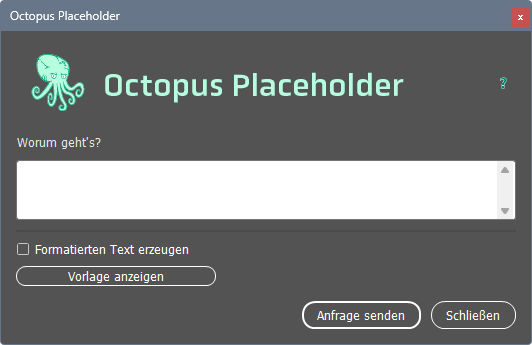
What’s it all about?
Enter your prompt here to describe the placeholder text you want. What should the content be about? Should it include headings? How many levels of headings? Well, you know, just like a typical AI prompt…
Create formatted text
If this option is not enabled , the generated AI text will inherit the formatting of the text frame. If the text frame is set to 10pt Minion, the text will appear in 10pt Minion.
If this option is enabled, the template will be used to format the text.
View template
Click the button to open the folder containing the template. There you will see the file “MarkdownStyles.indd”. Open it to edit it. Customize it to match the fonts, font sizes, colors, spacing, etc., that you need for your project.
A few tips
The file “MarkdownStyles.indd”
… will be applied by all versions of InDesign on your computer if Octopus is installed there. If you open and customize it in, say, InDesign 2026 , Octopus won’t be able to use it in InDesign 2025 anymore—that makes sense, right? So be careful!
What language is used?
The placeholder text is generated in the language assigned to the paragraph or paragraph style.