PDF, indd, idml, or Packaging
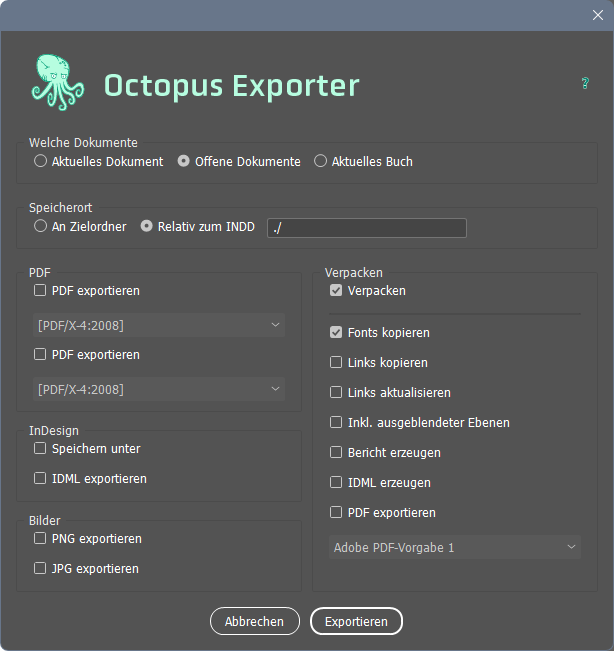
Which documents
Here you can specify which files you want to process:
— the current one, which is visible in the foreground;
— all open documents; or
— the "book"
Isn't that great? You can export a PDF from all open InDesign files with just one command. You can't do that with InDesign's built-in tools!
Note: The first PDF is given the same filename as the InDesign file. The second is given the extension *-2.pdf.
Save location
"To destination folder" means that the export will be saved in the same folder as the InDesign document.
"Relative to INDD" means that you can simply enter a folder name in the field. This folder will then be created next to the InDesign file, and the exports will be saved there.
PDF
: If you check both options, two different PDFs will be exported here upon request.
InDesign/Save As
... helps save disk space and make your InDesign run faster.
Export InDesign/IDML
... generates "InDesign Markup Language" files. See the box on the right.
Images
If you need to, you can use this method to export the pages of your InDesign files as PNG or JPG files.
Packaging
I'm sure I don't need to explain this feature to you. As you can see, there are various settings you can adjust.
If necessary, you can use this trick to create a third version of the PDF!