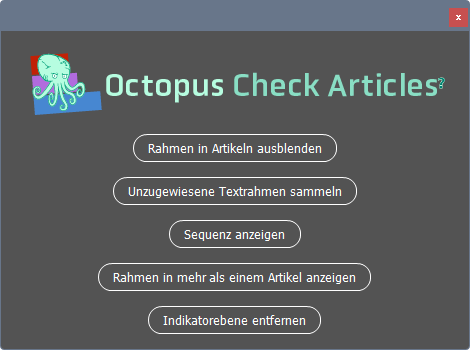
… simply hides all objects that are contained within an “article”.
Just click the “Hide frames in articles” button. You will then only see the text and image frames that are not integrated into the article structure.
Now all you have to do is decide if that’s okay and step in if necessary.
Clicking the button again—which now says “Show frames in articles”—will restore all frames.
This happens even if you close the script window.
Note: Closing the script window may take a little while. Please wait a few moments for the script to restoreany elements it may have previously hidden.
Close the window if you don’t need it!
… collects all text frames that are not yet managed in any article and places them in a new article.
For pages with a simple structure, that might be all you need to do. For more complex layouts, you may need to make some adjustments.
…. uses arrows to indicate the order of the frames in her articles.
On a specially generated layer called “ᴥ Sequence,” arrows are created to help you visualize the order of the items. Depending on the complexity of the page, this works better in some cases and less well in others.
You can delete this layer by clicking the “Remove Indicator Layer” button.
If you created a new layer for the arrows using “Show Sequence,” you can delete it by clicking this button.
… highlights all items that appear in more than one article.
To do this, the script creates a new layer called “ᴥ Sequence” and places markers on it.
To ensure accessibility, all text frames in articles must be managed. However, InDesign allows a single text frame to appear in multiple articles. This should not happen, and you can use this feature to check for it.
You can delete this layer by clicking the “Remove Indicator Layer” button.
If you export a PDF from an InDesign file that will later be read aloud by a screen reader, the correct text order is important . You can control this using the “Article” panel.
And the Octopus script “Check Items” helps you keep track of everything.
InDesign allows you to specify in the “Object Export Options” whether an image—or a frame in general—is an “artifact” or a “decorative image” that does not require alternative text.
That’s too many clicks for us. And that huge “Object Export Options” dialog is a pain, too. Octopus prefers a simpler approach:
Select the frame you want to turn into an artifact. Or select all the images on the print sheet that you want to turn into artifacts. Or select all the other frames or groups that you want to turn into “artifacts,” i.e., “decorative images.”
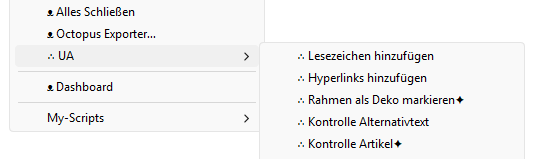
Then run the script “∴ Mark frame as decoration”.
Or make it even more intuitive:
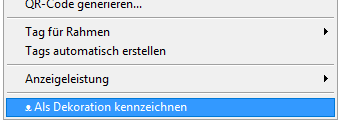
Once you’ve selected everything you want to turn into an “artifact,” right-click on it and select “ᴥ Mark as Decoration” from the context menu.
If you do not format a list structure in InDesign using the“Bullets and Numbering”feature, there are drawbacks.
This is because InDesign only adds the necessary list tags during PDF export if you use this feature.
InDesign does not provide a way to check whether the list you see in the document is a “dummy list” or whether it has been set up correctly.
The Octopus script "Check Lists" searches for "fake lists" and takes you from the first one to the next.
You can then edit so that they “correct” lists ... How you do that is, of course, up to you—you're a "grown-up" after all!
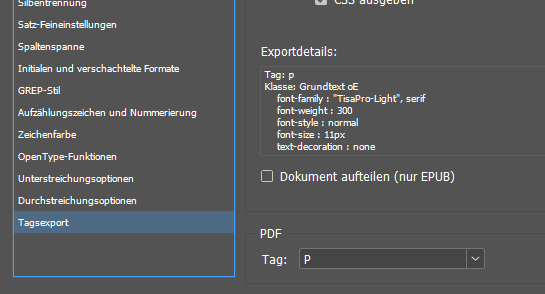
In InDesign, for accessibility purposes, all paragraph styles must have the correct entry under “Tag Export/PDF/Tag.”
InDesign does not offer a way to visually check within the document whether all paragraphs have the correct tags. This can only be checked in a list of paragraph styles.
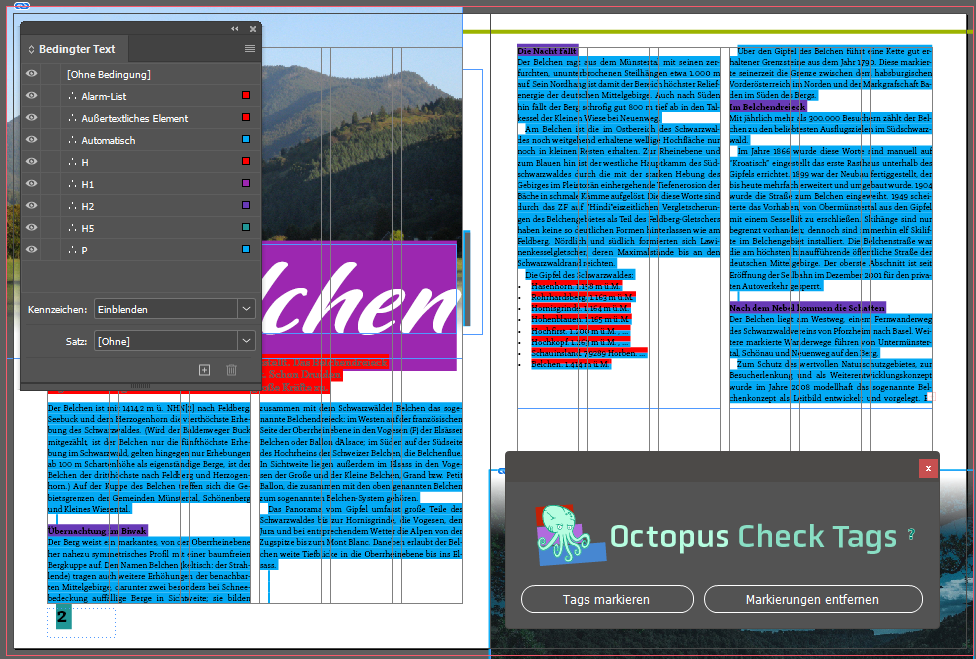
The Octopus script “Check Tags” highlights paragraphs in color based on the tags stored in the paragraph style.
Each tag is assigned a different “Conditional Text” in a specific color. This helps you determine whether all paragraphs have the correct tag. If this is not the case, you must change the setting in the paragraph format.
Once you’ve corrected the paragraph formats, click “Remove Markup” and “Mark Tags” to update the “Conditional Text” markings.
If a list has the tag “[Automatic],” the conditional text“∴ List”is assigned—because that’s the correct tag! ✅
If a list does not have the tag “[Automatic]”, the conditional text“∴ ALARM List”will be assigned. This appears as a strikethrough in the document . You should then intervene and assign the correct tag “[Automatic]”!
Paragraphs with the “H” tag are highlighted in red . This tag should not be used. Use the “H1” through “H6” tags instead.
Images must have alternative text or be marked as "decorative images." But which images meet this requirement? Which ones still need to be edited?
This script shows you that.
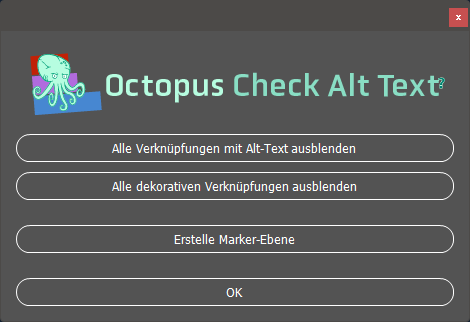
"Hide all links with alt text" hides all links that already have alt text. What this means for you is that you'll need to edit the ones you can still see.
"Hide all decorative links" hides these images. They are also called "artifacts"—that is, images that are irrelevant to understanding the content.
That way, you'll know exactly which images and graphics you still need to take care of. Cool, isn't it?
"Create Marker Layer" creates a marker layer that provides an overview of the links and their alt text.
🆕New in Version 4: Starting now, the “Object Export Options” will take into account not only the alternative text from the “Alternative Text” section, but also from “PDF with Tags”!
When you click the “Create Marker Layer”button, Octopus creates a new layer in your document.
At this level, frames in different colors are generated to indicate whether a link has alternative text (green frame ) or has been marked as a “decorative image” (blue frame). Or whether neither of these conditions applies (red frame ).
The alternative text, if available, is inserted into the frames. This is a good idea if, for example, you want to export a PDF so that someone who doesn’t have InDesign can review the text.
A yellow frame indicates that you have a problem. This is because it highlights either a text frame or an empty graphic frame with alt text. You should be aware that InDesign does not export alt text for such frames when exporting from InDesign.
Octopus is aware that this display of the alternative text at the marker level has its limitations. If the text is too long for the text frame, it gets cramped…
If we come up with a better idea for how to solve the problem, we’ll post an update!
Do you have any ideas? Write to us: support@project-octopus.net
Yeah, I know. That's a harsh statement! But what's the point?
The script corrects three types of errors.
If a hyphen (-) is inserted to hyphenate a word, a screen reader will read it exactly as it is—that is, with the hyphen. This does not happen when InDesign’s hyphenation feature is enabled.
Correction: The script replaces it with the “conditional hyphen”.
When using “Forced Line Break” but no space is used before it, this causes the screen reader to read both words as one word .
Correction: The script inserts a space.
Every typesetter’s nightmare: typing multiple spaces to control line breaks or page breaks. If you don’t like that, use this script.
Correction: The script replaces one or more spaces with a single space.
The searches and changes performed by the script are based on the GREP functionality in InDesign’s “Find and Replace” feature.
The great thing is that you don’t need to know anything about GREP to use this—Octopus does it for you!
But if you like, try opening “Find and Replace” after running the script for the first time. You’ll find these three expressions in the “Queries” section.
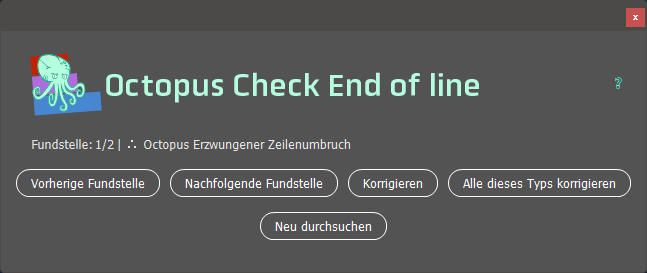
Location 1/2: This shows you how many issues the script has currently found in the document.
This is followed by an indication of whichtype of problem is currently being displayed.
There is “∴ Octopus forced line break“, “∴ Octopus Incorrect Delimiters” and “∴ Octopus Multiple Spaces“.
“Previous reference” and “Next Instance” to jump from one to the other.
Correct: This corrects the problem at this location.
Correct all instances of this type: This will correct all instances of this type.
Please be very careful about what you’re doing!
Rescan: If you make changes to the text while the script is running, it’s sometimes a good idea to have the script rescan the text and refresh the display.
The script is programmed to look in this folder on your hard drive:
Windows: ...\AppData\Roaming\Adobe\InDesign\Version 19.0\de_DE\Find-Change Queries\GREPmacOS: .../Library/Preferences/Adobe InDesign/Version X.X/Language Version/Find-Change Queries/GREPAll GREP queries stored there that begin with ∴ are taken into account in the script! This way, you can add your own personal corrections.
But the 🐙 says, “At your own risk!”
Octopus does this using “conditional text.” Don’t worry. When the script is closed, the markings are deleted. Your document won’t be permanently altered.
In order for the screen reader to read the PDF aloud in the correct language later, it needs to know which one is the right one!
You can set this up in InDesign. You should do this to avoid extra work in the PDF .
The language can be set individually for each character. However, it’s better to do this in the paragraph or character styles!
If you’ve set these styles correctly and applied them consistently, everything is fine!
But you can’t check this in InDesign!
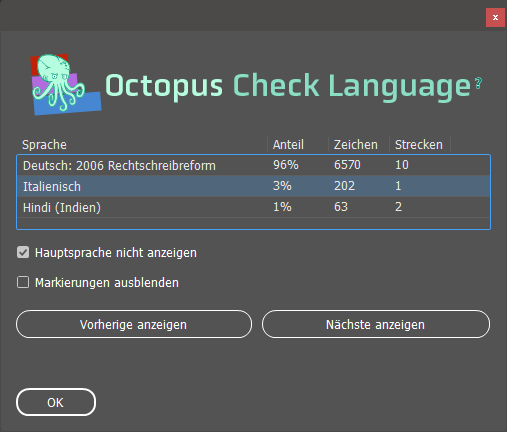
That’s where the “Language Check” script comes in handy.
Use the “Show Previous” and “Show Next” buttons to view the individual texts in their respective languages if you want to check that they are correct.
If it’s not correct, you’ll have to fix it yourself. The Octopus can’t take care of everything! 🐙
If the text is being translated , it will appear in the window as follows:
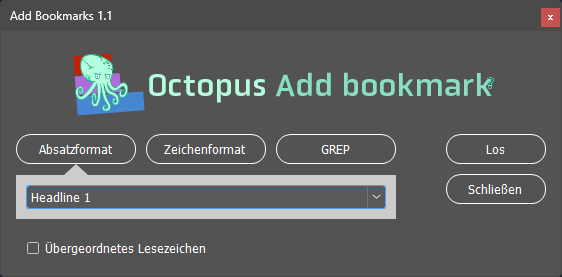
This script helps you create bookmarks. It works by using paragraph or character formatting, or by searching for words on the pages using GREP.
It’s incredibly easy to use, and in no time at all, your InDesign document will have beautiful bookmarks.
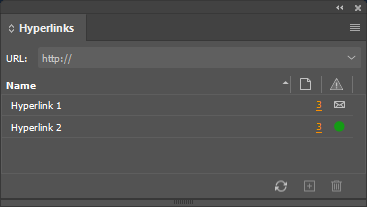
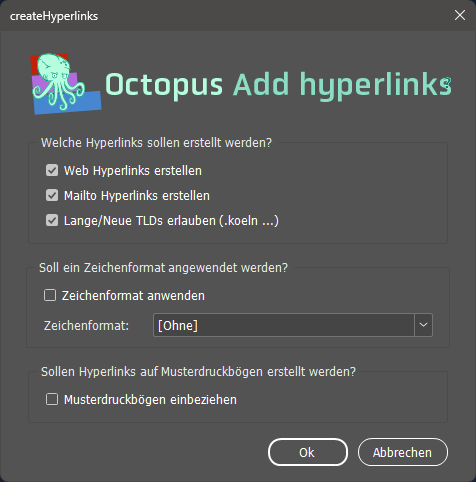
Sure, InDesign can also recognize URLs and email addresses and automatically turn them into proper hyperlinks.
But they end up looking like this:
Whether it’s a URL or an email address, it always just says “Hyperlink.” Boring! And it’s impractical when managing a large number of hyperlinks.
In addition, the InDesign solution has an issue with umlauts or a note in the URL.
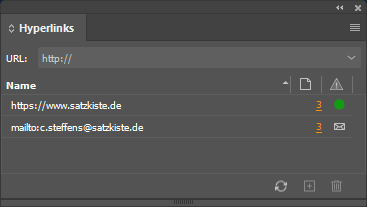
Octopus is more helpful in that regard: it assigns descriptive names that make it easier to navigate a long list. And, of course, umlauts and notes are no problem.
In addition, the new generic top-level domains (new gTLDs) and HTTPS links are supported. InDesign can’t do that ¯\(°_o)/¯